

Users, SFTP and SSH
Create application users, enable remote access, and manage public keys.
The procedures below take place inside the server. The English labels help locate the controls on the screen. Account, balance and hiring belong to the client area.
Understand which user you need
Where to find: Application Users; Databases → Database Users; Application Administration
Each account has a purpose. Creating a system user does not automatically create a database user or a WordPress administrator.
Understand the fields and options
- Application User / System User
- OS account that has the application files and can receive SFTP/SSH access.
- Database User
- Credential for connection to a database. It is managed within Databases.
- WordPress administrator or other application
- Account to manage content, settings and users within the installed software.
- Client area account
- Access to hiring and WordPane services; your registration should not be used as SQL credentials.
Create an application user
Where to find: Application Users → Create an Application User
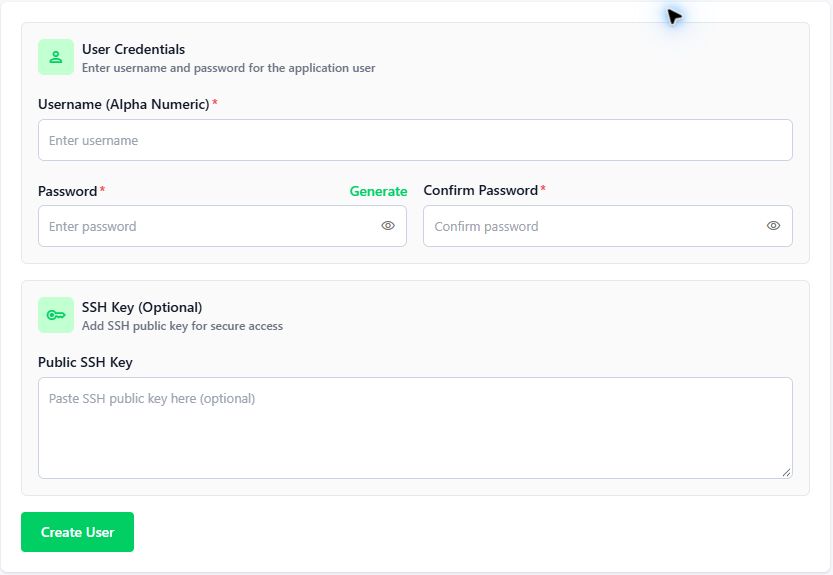
Have an alphanumeric name, password, and if you're using key authentication, your public SSH key.
- Click Create an Application User (create application user).
- Fill Username (Alpha Numeric) with a recognizable alphanumeric identifier.
- Enter Password and repeat in Confirm Password. The Generate button provides password generation; store it in your password manager.
- If you need to, paste the public key into Public SSH Key. The private key stays on your computer.
- Review and click Create User.
- Go back to the list and confirm the user. When creating an application, open the advanced options, select Choose From Existing and choose that user.
If the result is not expected
Name was refused
Use alphanumeric characters only and check if the name is already in use.
User does not appear in the application
Check if you are on the same server and if the list has been updated.
Enable application SFTP/SSH access
Where to find: Application Users → SFTP/SSH Access column; Application → Dashboard → SFTP/SSH Credits
SFTP transfers files; SSH opens a terminal session. The panel features a SFTP/SSH access control per user and also shows the connection data on the Dashboard of the application.
- Open Application Users and locate the user associated with the application using the Application column.
- Check out the SFTP/SSH Access column. Adjust the control to enable access when it is disabled and check out the result specified by the panel.
- Open the application and see SFTP/SSH Credentials: Host, Username and Port. Copy the password only for the connection client you use.
- Check the port at Settings → Security. If there is firewall in the provider, this port must also be released to its source.
- In the SFTP client, use SFTP protocol, server host, SSH port and application user; choose password or key according to your configuration.
- For SSH, connect using the same host, port and user. Confirm server identity before accepting a host key.
- Test access to the application directory. When remote access is no longer required, review the need to keep it enabled.
ssh -p PORTA USUARIO@IP_DO_SERVIDORIf the result is not expected
Connection refused or timeout
Check out SSH service, host, port, firewall rule and provider firewall.
Permission denied in authentication
Check user, password/key, SFTP/SSH access and Fail2ban locks.
Connects, but cannot send files
Check owner, directory and permissions; use the user associated with the application.
Update user SSH key
Where to find: Application Users → Key icon → Add SSH Key
The Add SSH Key form informs you that you are updating the identified user key. Do not paste a private key into the panel.
- Identify the correct user in the list and open the action with the key icon.
- Check the user name in the form notice.
- Collect the complete public key, including type and content, in the field with the example ssh-rsa AAAA... .
- Click Save and test the connection to the corresponding private key in the SSH client.
- Before replacing a key used by automation, check your dependencies. To suspend remote user access, use the SFTP/SSH Access control.
Edit password, review sudo and remove users
Where to find it: Application Users → edit; Sudo Access column
Changing the password affects SFTP/SSH connections that use this credential. Excluding a user requires checking their applications and tasks first.
- Open the user edit action and fill in the new password and confirmation requested.
- Save and update SFTP/SSH clients and automations that use the old password.
- Test the connection to the new credential.
- In the Sudo Access column, maintain administrative privileges only for a defined need and authorised persons.
- Before removing a user, consult your applications, cronjobs, supervisors and integrations. Migrate dependencies first and only then use the removal offered.
Updated October 8, 2026.
Consult other guides